Autoscaling
Services can run multiple replicas, and BitsReef can adjust the replica count for you based on resource usage. Both are configured from a service’s Scaling tab.
Manual scaling
Section titled “Manual scaling”- Open the service and go to its Scaling tab.
- Set a fixed replica count and save.
Autoscaling
Section titled “Autoscaling”- On the Scaling tab, set Min Replicas and Max Replicas — the bounds BitsReef stays within.
- Under Autoscaling Thresholds, set Target CPU (%) and Target Memory (%) — the utilization that triggers scaling.
- Optionally tune the Scale-Up and Scale-Down cooldowns to control how quickly it reacts.
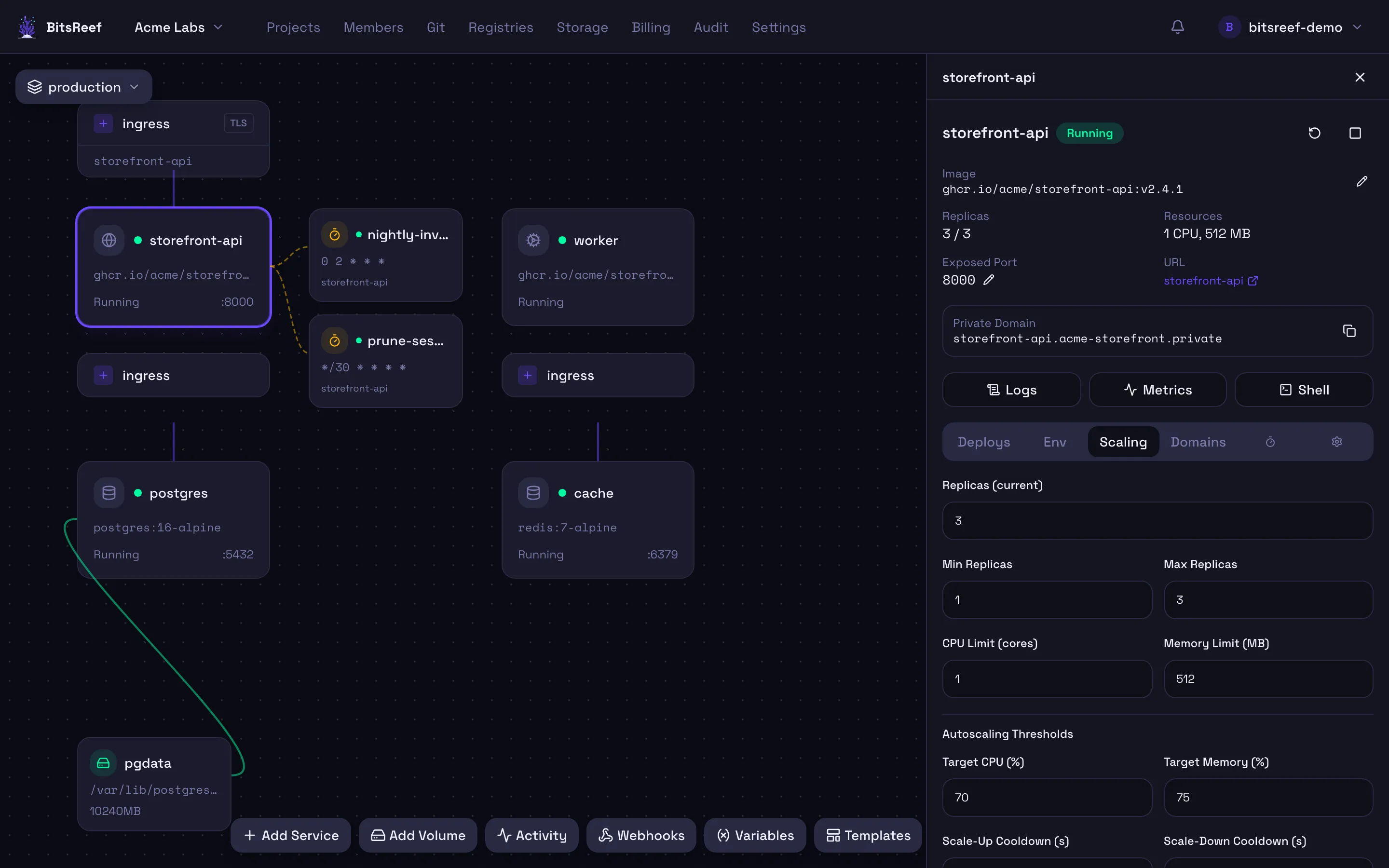
BitsReef watches the service’s metrics and adds or removes replicas to keep utilization near the target, within your min/max bounds.
Resource limits
Section titled “Resource limits”Each replica runs with the CPU and memory limits set on the service. Right-size these so a single replica has enough headroom, then let autoscaling handle bursts. Check current usage anytime in the Metrics view.
From the CLI
Section titled “From the CLI”bitsreef services scale web -r 3 # fixed replica countbitsreef up -p my-project -n web -i my/app:tag --replicas 3 --followbitsreef metrics --service web # CPU / memory / network snapshotSee also
Section titled “See also”- Deploy from an image
- Billing & usage — replicas and resources drive usage-based cost.